

Its been a while since I wrote anything here. Last weekend I was exploring real-time audio/video communication over WebRTC and FastAPI. Last time I used FastAPI was 3-4 years ago, when I was at Good Glamm Group where we built a microservice in FastAPI + PostgreSQL to power a feature for ScoopWhoop. And since I was using LiveKit to handle all the WebRTC and real-time communication stuff, it made sense since their Python SDK is well fleshed out compared to their Node.js SDK or the unofficial PHP SDK.
And so I thought, lets build something fun! 😀
We will build a basic video conferencing tool, a la Google Meet. We will use LiveKit to handle our WebRTC and then we will deploy this on Render. We will use FastAPI to build this, so yeah, Python. 🙂
How it all works
Think of LiveKit like a switchboard operator. Every participant in a call connects to a LiveKit Room (the switchboard). The switchboard routes audio & video between everyone that has a valid access token, which our backend issues.
Our architecture looks like this:
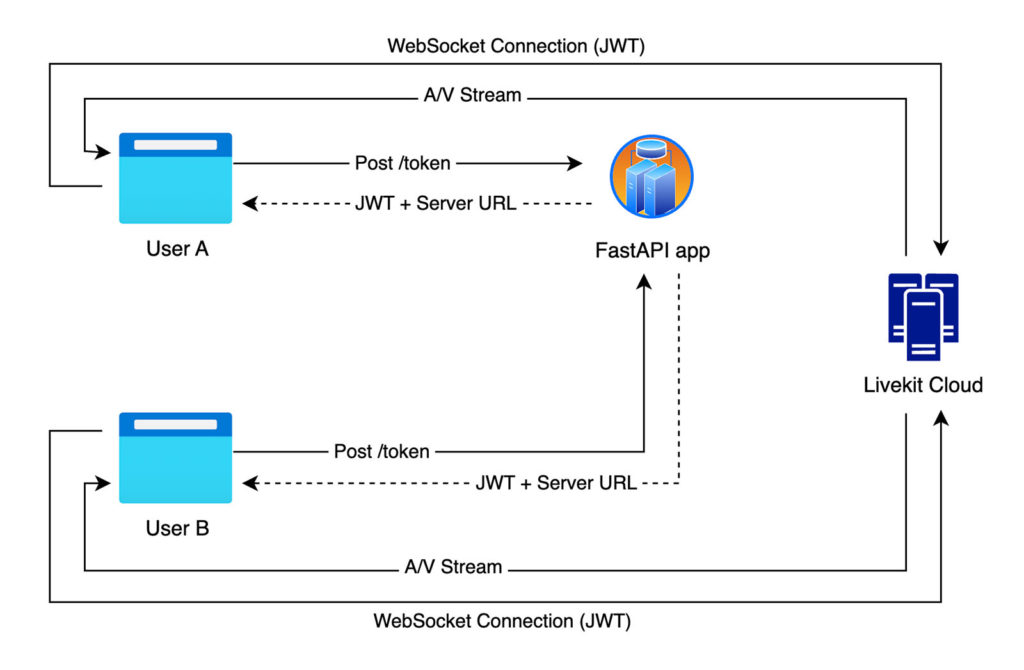
The FastAPI server sits in the middle – it verifies identities & hands out tokens. LiveKit handles the heavy lifting of the actual media transport over WebRTC.
Prerequisites
- Python 3.13+ – make sure
uvis installed as we will use that. -
LiveKit credentials
- Signup for a free account if you don't already have one.
- Create a project.
- Then go to Settings > API Keys. Click on “Create Key” button to create new API key. After API key is created, LiveKit will show you environment variables –
LIVEKIT_URL,LIVEKIT_API_KEY&LIVEKIT_API_SECRET. Copy these with their values. We will need them later.
- Render account – signup for a free account if you don’t already have an account. We will circle back to this later when we are ready to deploy our app.
Project Structure
			video-conf-app/
├── app.py              # FastAPI backend
├── .env                # Environment variables (local only, do not commit to git repo)
├── .gitignore
├── Procfile            # Tells Render how to start the app
├── pyproject.toml      # Managed by uv
└── static
    └── index.html      # Frontend
Setting up the project
Let’s create the project directory and initialise it with uv. Open your terminal, navigate to where you will keep this project & then run these commands.
			mkdir video-conf-app && cd video-conf-app
uv init
mkdir static
uv init creates a pyproject.toml & a minimal main.py. You can delete main.py — we won’t need it.
Now add the dependencies:
uv add fastapi "uvicorn[standard]" python-dotenv livekit-api
uv resolves and installs everything into a local .venv automatically. We don’t need to create or activate a virtual environment ourselves.
We’re using FastAPI as the web framework and uvicorn as the ASGI server. The [standard] extra pulls in a few optional speedups (like uvloop) that are worth having.
Set up environment variables
Create a .env file in video-conf-app folder:
			LIVEKIT_API_KEY=your_api_key_here
LIVEKIT_API_SECRET=your_api_secret_here
LIVEKIT_URL=wss://your-project.livekit.cloud
SERVER_PORT=6080
The LiveKit vars are the ones you get when you set up your API key in LiveKit. See Step 2.3 in Prerequisites above.
Building the FastAPI backend
In the video-conf-app folder, create a app.py file and add this code to it:
			import os
import uvicorn
from fastapi import FastAPI, HTTPException, Request, Response
from fastapi.responses import FileResponse
from fastapi.staticfiles import StaticFiles
from pydantic import BaseModel
from dotenv import load_dotenv
from livekit.api import AccessToken, VideoGrants, TokenVerifier, WebhookReceiver, LiveKitAPI, CreateRoomRequest

load_dotenv()

LIVEKIT_API_KEY = os.environ.get("LIVEKIT_API_KEY")
LIVEKIT_API_SECRET = os.environ.get("LIVEKIT_API_SECRET")
LIVEKIT_URL = os.environ.get("LIVEKIT_URL")
SERVER_PORT = int(os.environ.get("PORT", os.environ.get("SERVER_PORT", 6080)))

if not LIVEKIT_API_KEY or not LIVEKIT_API_SECRET or not LIVEKIT_URL:
	raise RuntimeError("LIVEKIT_API_KEY, LIVEKIT_API_SECRET, and LIVEKIT_URL must be set in .env")

app = FastAPI()
app.mount("/static", StaticFiles(directory="static"), name="static")

token_verifier = TokenVerifier(LIVEKIT_API_KEY, LIVEKIT_API_SECRET)
webhook_receiver = WebhookReceiver(token_verifier)


class TokenRequest(BaseModel):
	roomName: str
	participantName: str


@app.get("/")
async def index():
	return FileResponse("static/index.html")


@app.post("/token")
async def create_token(req: TokenRequest):
	async with LiveKitAPI(LIVEKIT_URL, LIVEKIT_API_KEY, LIVEKIT_API_SECRET) as lkapi:
		await lkapi.room.create_room(
			CreateRoomRequest(name=req.roomName, empty_timeout=30)
		)
	token = (
		AccessToken(LIVEKIT_API_KEY, LIVEKIT_API_SECRET)
		.with_identity(req.participantName)
		.with_name(req.participantName)
		.with_grants(VideoGrants(room_join=True, room=req.roomName))
	)
	return {"token": token.to_jwt(), "serverUrl": LIVEKIT_URL}


@app.post("/livekit/webhook")
async def receive_webhook(request: Request):
	auth_token = request.headers.get("Authorization")
	if not auth_token:
		raise HTTPException(status_code=401, detail="Authorization header is required")

	body = await request.body()
	try:
		event = webhook_receiver.receive(body.decode("utf-8"), auth_token)
		print(f"LiveKit Webhook Event: {event.event}")
		return Response(content="ok")
	except Exception as e:
		print(f"Webhook validation failed: {e}")
		raise HTTPException(status_code=401, detail="Authorization header is not valid")


if __name__ == "__main__":
	uvicorn.run(app, host="0.0.0.0", port=SERVER_PORT)
So what’s happening here?
Token Generation (/token)
This is the heart of the backend. When a user wants to join a call, the frontend sends their name & the name of the room they wish to join. The server creates an AccessToken – a signed JWT – that grants them permission to join that specific room.
The request body is validated automatically by Pydantic via the TokenRequest model.
			class TokenRequest(BaseModel):
	roomName: str
	participantName: str
If roomName or participantName are missing, FastAPI returns a 422 before the handler even runs.
VideoGrants is where we control permissions. room_join=True lets the participant join the specified room. We can get more granular here. For example, setting can_publish=False creates a view-only participant, useful for webinars.
The token is returned as a JWT string via token.to_jwt(). The frontend hands this directly to the LiveKit client SDK to establish a WebSocket connection. Your API key and secret never leave the server – only the token does.
Webhook Handler (/livekit/webhook)
LiveKit can ping your server when things happen, like when a participant joins, leaves or a room closes. This is useful for analytics, recording triggers or kicking off server-side logic.
One thing worth noting: the webhook endpoint reads the raw request body with await request.body() before passing it to WebhookReceiver. This is important – LiveKit signs the raw bytes, so we must not let FastAPI parse the body as JSON first. The WebhookReceiver validates the signature against our API secret, so we can be confident the event is genuinely from LiveKit. In this example we just log the event, but you could extend this to write to a database, send a notification, etc.
Building the frontend
Create static/index.html. This uses LiveKit’s JavaScript client SDK via CDN – no build step needed.
			<!DOCTYPE html>
<html lang="en">
<head>
	<meta charset="UTF-8" />
	<title>iGeek Meet</title>
	https://cdn.tailwindcss.com
	https://cdn.jsdelivr.net/npm/livekit-client/dist/livekit-client.umd.min.js
</head>
<body class="bg-[#1a1a2e] text-white flex flex-col items-center justify-center min-h-screen gap-4">

<h1 class="text-2xl font-semibold">iGeek Meet</h1>

<div id="setup" class="flex flex-col gap-3 items-center">
	<input id="roomName" type="text" placeholder="Room name" value="my-room"
		   class="bg-[#16213e] text-white border border-[#0f3460] w-64 px-4 py-2.5 rounded-lg text-base outline-none" />
	<input id="participantName" type="text" placeholder="Your name"
		   class="bg-[#16213e] text-white border border-[#0f3460] w-64 px-4 py-2.5 rounded-lg text-base outline-none" />
	<button onclick="joinRoom()"
			class="bg-rose-600 hover:bg-rose-700 text-white px-6 py-2.5 rounded-lg text-base cursor-pointer transition-colors">
		Join
	</button>
</div>

<div id="videos" class="flex flex-wrap gap-3 justify-center mt-5"></div>

<div id="controls" class="hidden gap-3 mt-3 items-center">
	<button id="micBtn" onclick="toggleMic()" title="Toggle microphone"
			class="w-[52px] h-[52px] rounded-full border-0 cursor-pointer flex items-center justify-center bg-white/15 text-white transition-colors hover:bg-white/25">
		<svg id="micOnIcon" width="22" height="22" viewBox="0 0 24 24" fill="none" stroke="currentColor" stroke-width="2" stroke-linecap="round" stroke-linejoin="round">
			<rect x="9" y="2" width="6" height="12" rx="3"/>
			<path d="M5 10a7 7 0 0 0 14 0"/>
			<line x1="12" y1="17" x2="12" y2="21"/>
			<line x1="9" y1="21" x2="15" y2="21"/>
		</svg>
		<svg id="micOffIcon" width="22" height="22" viewBox="0 0 24 24" fill="none" stroke="currentColor" stroke-width="2" stroke-linecap="round" stroke-linejoin="round" class="hidden">
			<rect x="9" y="2" width="6" height="12" rx="3"/>
			<path d="M5 10a7 7 0 0 0 14 0"/>
			<line x1="12" y1="17" x2="12" y2="21"/>
			<line x1="9" y1="21" x2="15" y2="21"/>
			<line x1="2" y1="2" x2="22" y2="22"/>
		</svg>
	</button>

	<button id="camBtn" onclick="toggleCam()" title="Toggle camera"
			class="w-[52px] h-[52px] rounded-full border-0 cursor-pointer flex items-center justify-center bg-white/15 text-white transition-colors hover:bg-white/25">
		<svg id="camOnIcon" width="22" height="22" viewBox="0 0 24 24" fill="none" stroke="currentColor" stroke-width="2" stroke-linecap="round" stroke-linejoin="round">
			<polygon points="23 7 16 12 23 17 23 7"/>
			<rect x="1" y="5" width="15" height="14" rx="2"/>
		</svg>
		<svg id="camOffIcon" width="22" height="22" viewBox="0 0 24 24" fill="none" stroke="currentColor" stroke-width="2" stroke-linecap="round" stroke-linejoin="round" class="hidden">
			<polygon points="23 7 16 12 23 17 23 7"/>
			<rect x="1" y="5" width="15" height="14" rx="2"/>
			<line x1="2" y1="2" x2="22" y2="22"/>
		</svg>
	</button>

	<button onclick="leaveRoom()"
			class="bg-rose-600 hover:bg-rose-700 text-white px-5 py-2 rounded-lg text-sm cursor-pointer transition-colors">
		Leave
	</button>
</div>

<script>
	const { Room, RoomEvent, Track, createLocalTracks } = LivekitClient;

	let room = null;
	let localTracks = [];

	async function joinRoom() {
		const roomName = document.getElementById("roomName").value.trim();
		const participantName = document.getElementById("participantName").value.trim();

		if (!roomName || !participantName) {
			alert("Please enter a room name and your name.");
			return;
		}

		// Get a token from our Python backend
		const response = await fetch("/token", {
			method: "POST",
			headers: { "Content-Type": "application/json" },
			body: JSON.stringify({ roomName, participantName }),
		});

		const { token, serverUrl } = await response.json();

		// Connect to LiveKit
		room = new Room();

		room.on(RoomEvent.TrackSubscribed, (track, publication, participant) => {
			attachTrack(track, participant.identity);
		});

		room.on(RoomEvent.TrackUnsubscribed, (track) => {
			const el = document.getElementById(`track-${track.sid}`);
			if (el) el.remove();
		});

		room.on(RoomEvent.ParticipantDisconnected, (participant) => {
			document.querySelectorAll(`[data-identity="${participant.identity}"]`).forEach(el => el.remove());
		});

		await room.connect(serverUrl, token);

		// Publish local camera + microphone
		localTracks = await createLocalTracks({ audio: true, video: true });

		for (const track of localTracks) {
			await room.localParticipant.publishTrack(track);
			if (track.kind === Track.Kind.Video) {
				attachTrack(track, participantName + " (you)", true);
			}
		}

		document.getElementById("setup").classList.add("hidden");
		document.getElementById("controls").classList.remove("hidden");
		document.getElementById("controls").classList.add("flex");
	}

	function attachTrack(track, identity, isLocal = false) {
		if (track.kind === Track.Kind.Audio) {
			const audio = document.createElement("audio");
			audio.id = `track-${track.sid}`;
			audio.autoplay = true;
			track.attach(audio);
			document.body.appendChild(audio);
			return;
		}

		if (track.kind !== Track.Kind.Video) return;

		const videosDiv = document.getElementById("videos");
		const wrapper = document.createElement("div");
		wrapper.dataset.identity = identity;

		const video = document.createElement("video");
		video.id = `track-${track.sid}`;
		video.autoplay = true;
		video.playsInline = true;
		video.className = "w-80 h-60 bg-black rounded-xl object-cover";

		if (isLocal) video.muted = true;

		track.attach(video);
		wrapper.appendChild(video);

		const label = document.createElement("p");
		label.className = "text-center text-sm mt-1";
		label.textContent = identity;
		wrapper.appendChild(label);

		videosDiv.appendChild(wrapper);
	}

	async function toggleMic() {
		if (!room) return;

		const enabled = room.localParticipant.isMicrophoneEnabled;
		await room.localParticipant.setMicrophoneEnabled(!enabled);
		const btn = document.getElementById("micBtn");
		btn.classList.toggle("bg-rose-600", enabled);
		btn.classList.toggle("bg-white/15", !enabled);
		document.getElementById("micOnIcon").classList.toggle("hidden", enabled);
		document.getElementById("micOffIcon").classList.toggle("hidden", !enabled);
	}

	async function toggleCam() {
		if (!room) return;

		const enabled = room.localParticipant.isCameraEnabled;
		await room.localParticipant.setCameraEnabled(!enabled);
		const btn = document.getElementById("camBtn");
		btn.classList.toggle("bg-rose-600", enabled);
		btn.classList.toggle("bg-white/15", !enabled);
		document.getElementById("camOnIcon").classList.toggle("hidden", enabled);
		document.getElementById("camOffIcon").classList.toggle("hidden", !enabled);
	}

	async function leaveRoom() {
		if (!room) return;

		for (const track of localTracks) track.stop();
		await room.disconnect();
		room = null;
		document.getElementById("videos").innerHTML = "";
		document.getElementById("setup").classList.remove("hidden");
		document.getElementById("controls").classList.add("hidden");
		document.getElementById("controls").classList.remove("flex");
	}
</script>
</body>
</html>
Let’s walk through the key pieces of the frontend JavaScript.
Joining a room (joinRoom)
When a user clicks “Join” button, the function first sends a POST request to /token endpoint on our FastAPI backend to get a JWT and the LiveKit server URL. It then creates a Room instance, the central object in LiveKit’s JS SDK, then registers three event listeners before connecting:
TrackSubscribedfires when a remote participant publishes a track (audio or video). It callsattachTrackto render it.TrackUnsubscribedfires when a remote track is removed. It finds the element by the track’ssidand removes it from the DOM.ParticipantDisconnectedfires when a participant leaves entirely. It removes all their track elements in one sweep.
Once the listeners are registered, it connects to LiveKit with room.connect(serverUrl, token), then creates & publishes the local camera + mic with createLocalTracks. The local video track is also passed to attachTrack so the user can see themselves.
Attaching tracks (attachTrack)
This function handles both audio and video tracks differently:
- Audio: creates a hidden
<audio autoplay>element, attaches the track to it, then appends it to the body. It doesn’t need to be visible – the browser just plays it. - Video: creates a
<video>element with Tailwind classes for sizing, attaches the track, wraps it in a<div>with a name label & appends it to the video grid.
Both element types get id="track-${track.sid}" so the TrackUnsubscribed handler can find and remove them by ID when a track goes away.
Toggling mic and camera (toggleMic, toggleCam)
Both functions follow the same pattern. They read the current enabled state from room.localParticipant, flip it via setMicrophoneEnabled / setCameraEnabled, then update the button UI to reflect the new state, toggling the bg-rose-600 class to turn the button red when muted & swapping between the normal and slashed SVG icons.
Leaving a room (leaveRoom)
Stops all local tracks (which releases the camera and microphone). room.disconnect() is called to cleanly close the WebSocket connection. It clears the video grid & resets the UI back to the join form.
Add a Procfile and .gitignore
Before running or deploying, create two small files.
Procfile tells hosting platforms (like Render) how to start the app using uvicorn:
web: uvicorn app:app --host 0.0.0.0 --port $PORT
.gitignore makes sure our .env file, which holds our secrets, never gets committed:
			.env
.venv/
__pycache__/
Run it locally
Run the below command in terminal to run the app:
uv run app.py
uv run automatically uses the project’s .venv, so there’s nothing to activate. Open your browser at http://localhost:6080, enter a room name and your name & click “Join” button. Open a second tab (or another browser on same computer) & join the same room – you’ll see both participants.
If you have ngrok CLI setup locally then you can share this URL via it with another person to test this out while still running the app on your computer.
What’s Actually Happening
When you join:
- The frontend make a
POSTrequest to/tokenendpoint on the FastAPI backend with your name and room name. - FastAPI backend generates a signed JWT using your API key and secret.
- The LiveKit JS SDK uses that token to open a WebSocket connection directly to the LiveKit server.
- LiveKit negotiates WebRTC peer connections & starts routing your audio and video.
- Other participants in the room automatically receive your tracks via the
TrackSubscribedevent.
The Python server’s job is essentially done after step 2. It doesn’t proxy the media – that’s all handled via LiveKit. This is why LiveKit is so efficient: your backend stays lightweight.
Room Management with the Server API
If we want to manage rooms programmatically from Python then livekit-api package allows for that as well. For example, we can create rooms with custom settings or list active rooms:
			import asyncio
from livekit import api

async def manage_rooms():
	lkapi = api.LiveKitAPI()  # reads LIVEKIT_API_KEY, LIVEKIT_API_SECRET, LIVEKIT_URL from env

	# Create a room with a 1-minute idle timeout
	room = await lkapi.room.create_room(
		api.CreateRoomRequest(
			name="standup-room",
			empty_timeout=60,	   # close after 1 minute if empty
			max_participants=20,
		)
	)
	print(f"Created room: {room.name}")

	# List all active rooms
	rooms = await lkapi.room.list_rooms(api.ListRoomsRequest())
	for r in rooms.rooms:
		print(f"Room: {r.name}, Participants: {r.num_participants}")

	await lkapi.aclose()

asyncio.run(manage_rooms())
This is handy if we want to pre-create rooms before users join, enforce participant limits or build an admin dashboard.
Trying it out on the Web
Push code to Github
Run these commands to create a Git repo and push it to your Github
			git init
git add .
git commit -m "Initial commit"
gh repo create video-conf-app --private --source=. --push
The last command is for Github CLI which creates the repo on your account and then pushes the code to it. Its basically an equivalent to doing this if you already have a repo on Github:
			git remote add origin git@github.com:<YOU>/video-conf-app.git
git push -u origin master
You don’t have to use Github. I’ve used it here just for convenience. Render officially supports direct connections to Github, Gitlab & Bitbucket. You can host your Git repo anywhere you want.
Deploy on Render
- Login to your Render account, create a project & then create a new web service.
- Connect to your git repo. If its Github, Gitlab or Bitbucket then this will be very straightforward.
- Set a unique name for your web service – a sensible default is already added based on your Git repo name.
- Set language to
Python 3. - The branch would be auto selected. If not then select the correct one.
- Set the build command to
pip install uv && uv sync. - Set the start command to
uvicorn app:app --host 0.0.0.0 --port $PORT. - Select the free instance type.
- In the environment variables section there is “Add from .env”. Click that & paste the LiveKit vars from your
.env. You do not need to setSERVER_PORTenv var, Render will automatically inject PORT. - Click the “Deploy Web Service” button. It will take a few minutes as Render will build your container and deploy it.
Once deployed, your web service will be assigned a URL like https://[your-slug].onrender.com.
Setup webhook on LiveKit
- Login to your LiveKit account.
- Go to Project Settings -> Webhooks
- Add new webhook. The URL will be
https://[your-slug].onrender.com/livekit/webhook. Make sure to update it with the sub-domain you got from Render. - Select the API key from the dropdown. This must be same API key which you are using in your FastAPI backend on Render.
That’s it. LiveKit will now send signed Webhook events to your server whenever participants join, leave or rooms are created or destroyed.
IMPORTANT: This is not production ready. This is just a quick app we made to try out real time audio video communication over WebRTC using LiveKit.
If you want to go further on this path then, a real production app would add:
- Authentication: At present anyone can request a token for any room. You’d want to verify a user’s session before issuing a token.
- Room permissions: Use
VideoGrantsto create moderator roles (room_admin=True) or view-only participants (can_publish=False) – the latter are useful if you are creating a webinar. - Webhooks for room lifecycle: Log when rooms are created/destroyed, track participant join/leave times or trigger recordings.
- Recording: LiveKit’s Egress API can record rooms to S3 or similar. It’s a single API call from Python.
- A proper frontend: LiveKit has a React component library that gives you a production-ready UI out of the box.
Wrapping Up!
LiveKit abstracts away a lot of WebRTC complexity. With about 50 lines of Python we’ve got a backend that can power a fully functional video call application. The Python SDK handles token signing, room management & Webhook verification cleanly while the LiveKit server takes care of the actual media routing.
If you want to dig deeper, check out the LiveKit Python SDK on GitHub and the LiveKit docs.
This is just one of the many things LiveKit if capable of. There are many other rabbit holes worth exploring.
Happy building!